DYMO Connect is a label design and printing application created for DYMO label printers. It replaces older DYMO labeling software and offers a more streamlined interface with improved compatibility for modern operating systems. The software allows users to design labels with text, barcodes, graphics, and address information, then print them directly to a connected DYMO printer.
The platform is available for multiple environments including Windows, macOS, iOS, and Android devices. This flexibility makes it convenient for users who want to design labels from a desktop computer or quickly print them from a smartphone or tablet. With built-in templates and editing tools, users can produce professional labels without advanced design experience.
Key Features of DYMO Connect
- Custom label design with text, images, and shapes
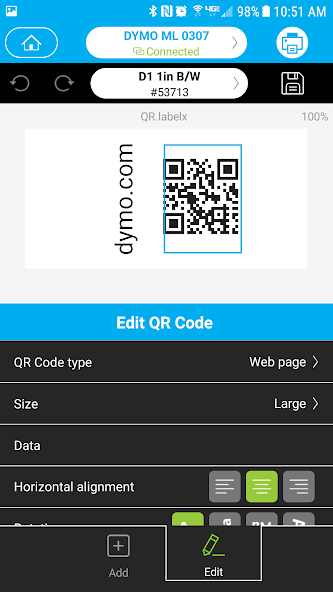
- Barcode and QR code generation
- Ready-to-use label templates
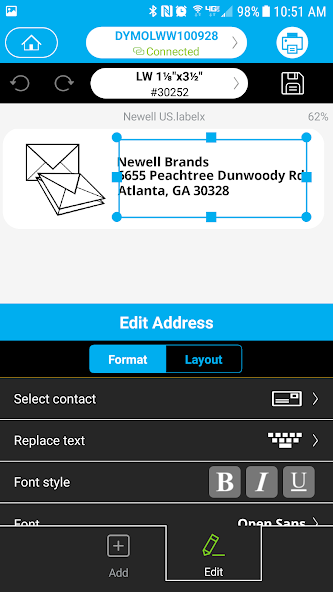
- Address book integration
- Support for compatible DYMO label printers
- Mobile and desktop compatibility
These features make the software practical for offices, warehouses, online sellers, and individuals who frequently print labels.
Pros of DYMO Connect
1. Clean and Modern Interface
The application provides a simplified layout that makes label creation easy even for beginners. Most tools are clearly organized, allowing users to drag and drop elements such as text fields or barcodes onto a label template.
2. Wide Device Compatibility
DYMO Connect works on both computers and mobile devices. This means labels can be designed at a desk or printed on the go from a phone, which is particularly useful for shipping operations and mobile work environments.
3. Template Library
The software includes a selection of ready-made templates for shipping labels, file labels, name badges, and more. These templates reduce setup time and help users create consistent designs quickly.
4. Barcode and QR Code Support
Businesses that rely on inventory tracking or product identification benefit from the built-in barcode generator. Users can easily create scannable codes without needing additional tools.
5. Integration with Address Lists
The address book feature helps users store contact information and automatically generate mailing labels. This is particularly helpful for offices that frequently send documents or packages.
Cons of DYMO Connect
1. Limited Printer Compatibility
DYMO Connect only works with specific DYMO printers. If you are using a printer from another brand, the software will not support it.
2. Learning Curve for Advanced Features
While the basic functions are simple, more advanced options—such as customizing layouts or integrating barcodes—may take some time for new users to fully understand.
3. Occasional Software Updates Needed
Like many device-based applications, DYMO Connect occasionally requires updates to maintain compatibility with operating systems or printers. This may require reinstalling or updating the software periodically.
4. Limited Design Flexibility Compared to Graphic Software
The design tools are focused on labeling rather than full graphic design. Users looking for complex layouts or highly customized visual designs may find the options somewhat limited.
How to Use DYMO Connect
Getting started with DYMO Connect is relatively straightforward. After installing the software and connecting a compatible printer, users can begin designing labels within minutes.
Step 1: Install the Application
Download the DYMO Connect software from here or install the mobile version from the App Store or Google Play. Follow the installation instructions to complete the setup.
Step 2: Connect Your DYMO Printer
Attach your DYMO printer to your computer via USB or connect it through the supported wireless method. Once connected, the software should automatically detect the device.
Step 3: Choose a Label Template
Open the application and browse through the available templates. Select a label format that matches your intended purpose, such as shipping labels or name badges.
Step 4: Customize the Label
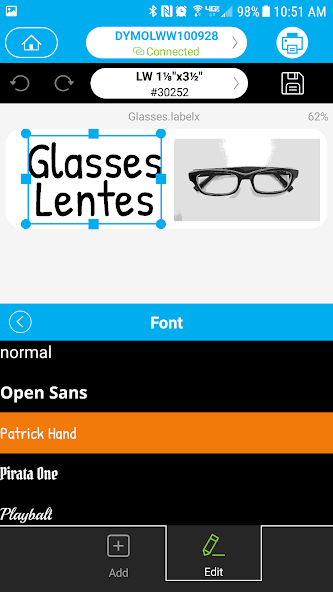
Add text, shapes, images, or barcodes to the label. You can adjust font sizes, alignment, and spacing to ensure the layout fits your label size.
Step 5: Preview the Label
Before printing, review the design using the preview feature. This helps avoid misaligned text or formatting errors.
Step 6: Print the Label
Load the appropriate label roll into your DYMO printer and click the print button. The printer will produce the label according to your selected layout.
Who Should Use DYMO Connect?
DYMO Connect is well suited for small businesses, online sellers, office administrators, and anyone who frequently prints labels. E-commerce sellers can use it for shipping labels, while office teams can organize files and equipment efficiently. Even home users may find it useful for labeling storage containers, cables, or household supplies.
Because the software integrates directly with DYMO label printers, it offers a reliable workflow for people who regularly produce labels in bulk.
Overall, DYMO Connect provides a convenient way to design and print labels without needing complicated software. Its intuitive interface, template library, and barcode tools make it practical for everyday use. Although it works best within the DYMO ecosystem and may not offer advanced design capabilities, it remains a dependable solution for efficient labeling and organization.



 APK
APK  Google Play
  iOS
iOS  1.60
1.60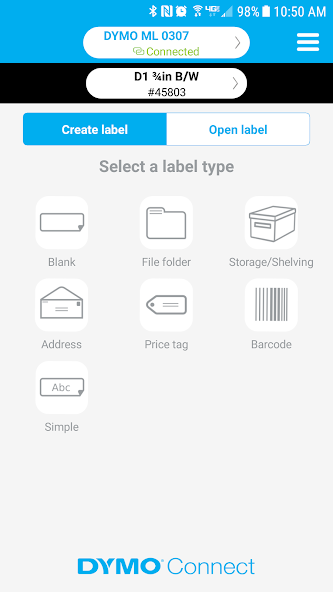
 Download